How to skip to the recipe on any site
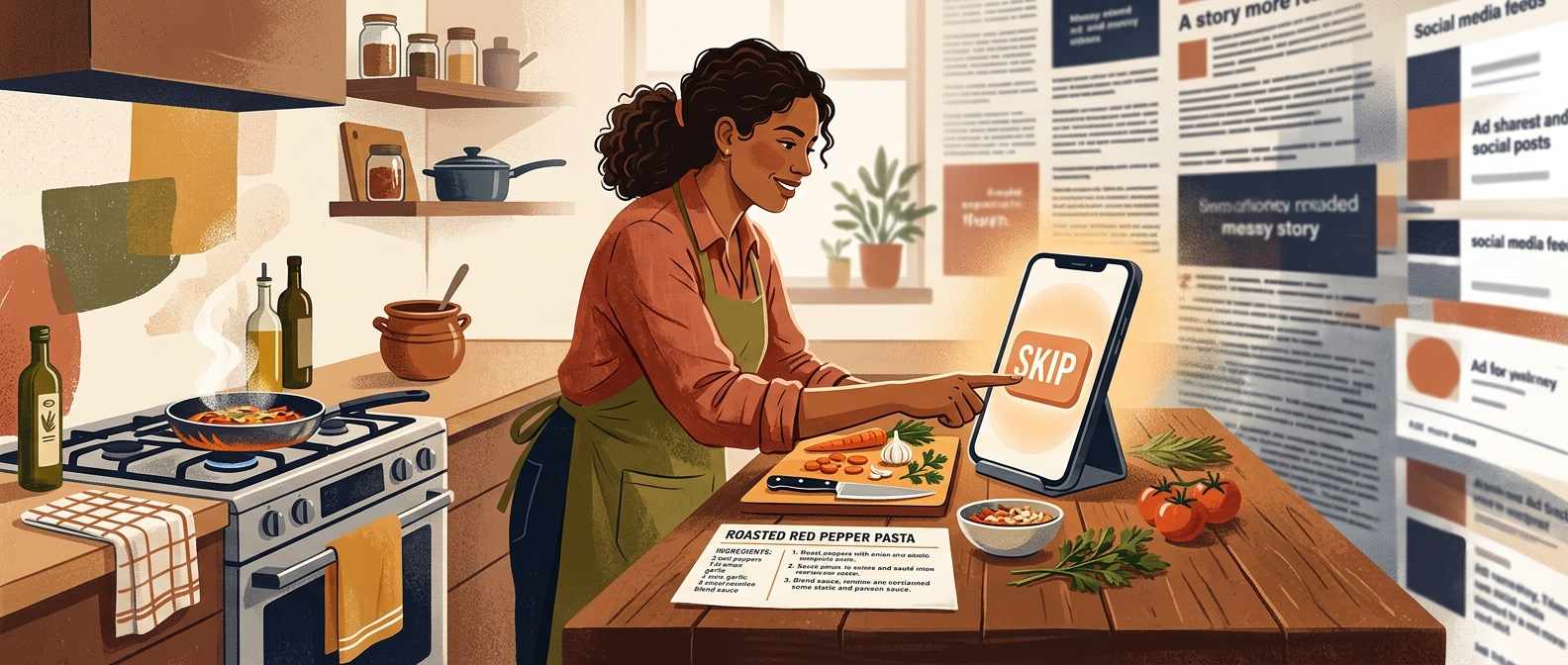
Most recipe sites put the actual recipe a long scroll below the page title — below the intro, the story, the tips section, and several ad units. There are four reliable ways to get past all of that and land on the ingredients immediately. Here they are, fastest first.
Look for a “Jump to Recipe” button near the top of the page — most major recipe sites have one. If it is not there, press Ctrl+F (Windows) or ⌘+F (Mac / iPhone Safari) and type ingredients. The browser will jump to the first match, which is almost always the recipe card.
Method 1: Use the Jump to Recipe button
Most large recipe sites include a “Jump to Recipe” button near the top of the page, typically just below the title or hero image. Tapping or clicking it anchors the page directly to the recipe card, bypassing everything above it. On mobile it usually appears as a small pill-shaped button. On desktop it is often a text link. Look for it before scrolling — it is faster than any other method when it is present.
The caveat: not all sites have one, and some sites place it below an initial popup or consent banner that loads first. If you do not see it within the first screenful, move to one of the methods below.
Method 2: Use browser Find — Ctrl+F or ⌘+F
Every major browser has a Find function that jumps to the first instance of any text on the page. Open it with Ctrl+F on Windows or ⌘+F on Mac, type ingredients, and press Enter. The page will scroll to the recipe section immediately. On mobile Safari, tap the address bar, type the word directly, and choose “On This Page” from the suggestions. On Chrome for Android, tap the three-dot menu and select Find in Page.
This works on every site regardless of whether a jump button exists. The word “servings” or “yield” also works if a page’s recipe card uses different labelling.
On mobile, this also works inside most browser apps. Searching for “ingredients” via Find in Page gets you to the recipe in one step and works on sites that have buried the jump link or do not have one at all.
Method 3: Use Reader Mode
Reader Mode strips the page down to its article content — text and images — removing ads, sidebars, sticky bars, and most navigation. On iOS Safari, tap the reader icon (four horizontal lines) in the address bar once the page has loaded. On Firefox for desktop and Android, it appears as a book icon. On Edge, look for the Immersive Reader icon in the toolbar.
The recipe is still somewhere below the intro in reader mode, but the page is much shorter without all the surrounding content, and the scroll takes a fraction of the time. The limitation: some sites use formats or structured recipe cards that do not render cleanly in reader mode, so the layout may be plain. It works best as a combined fix — cleaner page, faster scroll.
Method 4: Use a recipe clipper extension
Extensions like Paprika, Whisk, and Saffron extract the recipe card from any page and save it in a clean, stripped-down view — just the title, ingredients, and method. Once clipped, the recipe is readable in the app without any of the surrounding page. Paprika is a paid one-time purchase; Whisk and Saffron have free tiers. All three support clipping from the browser on desktop, and some work on mobile.
This method takes more setup than the others but pays off if you regularly cook from multiple sites. The clipped version is also available offline, which is useful when your kitchen has a weak signal.
Recipe clippers extract the card, not the story — which is exactly what you wanted. The trade-off is that they depend on the source site using standard recipe markup. Most major recipe sites do; smaller blogs are less reliable.
If you want to skip the workaround entirely
All of these methods are workarounds for the same underlying design: a site built to maximise time on page and ad impressions, with the recipe treated as the destination at the bottom rather than the content at the top.
NoAdsCooking puts the recipe at the top of the page. There is no jump link because there is nothing to jump past — no intro story, no ad units stacked above the fold. The recipe starts where the page starts.
Recipe first. Nothing before it.
NoAdsCooking doesn’t bury the recipe. Open a page and it’s already there — no jumping required.
Browse recipes, no ads